How DNS Resolution Works
How DNS Resolution Works (Explained Using dig Step-by-Step)
When you type google.com into your browser, something surprisingly complex happens behind the scenes. Your computer somehow figures out which machine on the internet hosts Google and connects you to it in milliseconds. That something is DNS. In this article, we will build a clear mental model of how DNS resolution works, using the dig command as a practical tool to inspect each step. We will start from absolute basics and gradually move into a system-design view that developers and DevOps engineers use. By the end, you will understand:
1. What DNS really is and why it exists
2.What dig does and why it is useful
3.How DNS works in layers: root → TLD → authoritative
4.The complete resolution flow for google.com
5.How this maps to real browser behavior
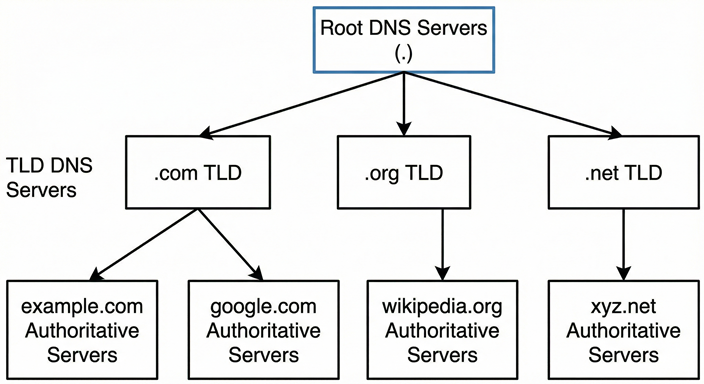
What is DNS and why name resolution exists
At its core, DNS is the phonebook of the internet.
Computers do not speak languages; they speak numbers (specifically, IP addresses like 142.250.190.46). Humans, on the other hand, are terrible at remembering random strings of numbers. We prefer memorable names like google.com.
Name Resolution is simply the process of translating those human-friendly names into computer-friendly IP addresses. Without DNS, you would have to carry a notebook full of IP addresses just to browse the web! What is the dig command and when it is used
What is the dig command and when it is used
dig stands for Domain Information Groper.
While the name is a bit old-school, it is the industry-standard diagnostic tool for network administrators and developers. Unlike the simpler ping command (which just checks if a server is alive), dig allows you to query DNS name servers directly and inspect the specific records they hold
An X-ray for DNS It lets you ask:
Who controls this domain?
Which servers answer for it?
What IP does it resolve to?Is DNS propagation complete?
We use dig when:
1. A website is not loading, and we want to know if it is a server issue or a domain issue.
2. We need to verify where a domain is pointing.
3. We want to understand the path a request takes through the internet.
Understanding dig . NS and Root Name Servers
Let's start our journey at the very top of the hierarchy. If you open your terminal and type:
dig . NS You are asking the internet: Who is in charge of everything?
The Output Explained:
You will see a list of servers named a.root-servers.net , b.root-servers.net, all the way to m.root-servers.net.
What represents:
The . represents the Root. These 13 clusters of servers are the foundation of the DNS hierarchy. Crucially, Root Servers do not know the IP address of google.com. They are too high-level for that. Their only job is to direct traffic to the next layer down based on the extension of the domain (like .com, .org, or .io).
Visual Idea:
Imagine a librarian at the front desk of a massive library. They don't know exactly which shelf the book is on, but they know which floor (the TLD) you need to go to.
Understanding dig com NS and TLD Name Servers
Now that the Root server has identified that our target (google.com) ends in .com, it points us to the Top-Level Domain (TLD) servers. To see who controls this layer, we run:
dig com NS This asks: Who manages the .com domain?
The Output Explained: You will see servers listed like a.gtld-servers.net. These are managed by a registry (in the case of .com, it’s a company called Verisign).
Why it matters: The TLD servers are the middlemen. Like the Root servers, they also do not know Google's IP address. However, they maintain a massive list of every single .com domain in existence. They know exactly which specific company has the authority to answer questions about google.com.
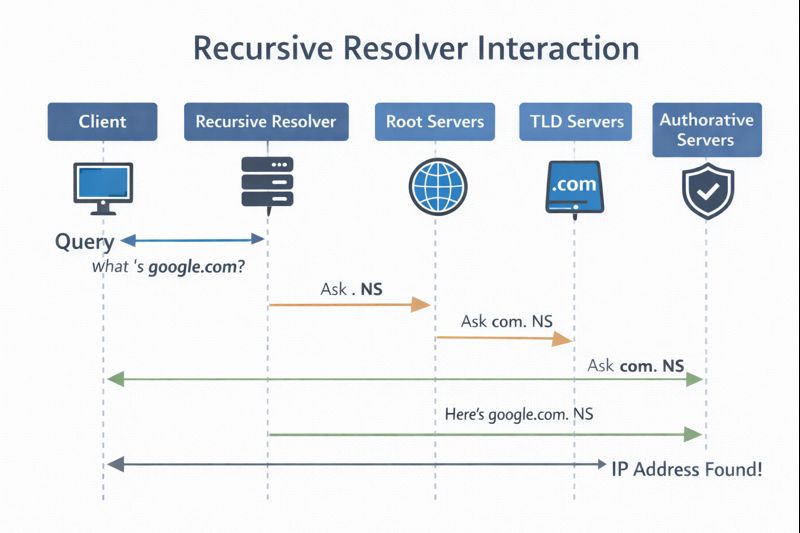
Understanding dig google.com NS and Authoritative Name Servers
The TLD server directs us to the specific servers owned and managed by Google. This brings us to the Authoritative Name Servers. We find them by running:
dig google.com NS This asks: Which servers are authoritative for google.com?
The Output Explained: The response will list servers like ns1.google.com, ns2.google.com, etc.
Why it matters: The NS (Name Server) record is critical here. It tells the internet: "These specific servers are the source of truth for this domain." Unlike the Root or TLD servers, the Authoritative Name Servers have the final answer. They hold the specific map containing the IP addresses for mail.google.com, maps.google.com, and google.com itself.
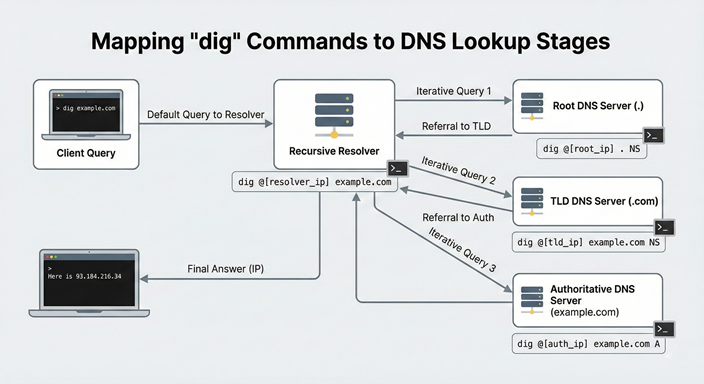
Understanding dig google.com and the full DNS resolution flow
Finally, we are ready to get the answer we came for. When we run the standard command:
dig google.com This returns: A record (IPv4) and AAAA record (IPv6)
Example: google.com 300 IN A 142.250.195.78
This is the actual answer your browser needs. We are asking for the A Record (Address Record).
The Output Explained: The ANSWER SECTION of the output will finally show an IP address, such as 142.250.190.46.
Connecting to the Real World: When you type google.com into your browser, your computer (or your ISP's Recursive Resolver) performs this exact dance behind the scenes:
Ask Root: Where is .com? -> Go to TLD servers.
Ask TLD: Where is google.com? -> Go to Google's Authoritative servers.
Ask Authoritative: What is the IP for google.com? -> Here is the IP: 142.250.190.46.
Browser: Connects to 142.250.190.46 and loads the page.
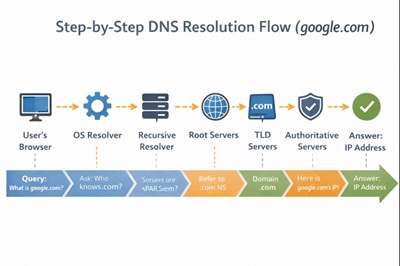
Cheat-sheet: dig commands and what they teach
| Command | DNS Layer | What You Learn |
| dig . NS | Root | Root servers |
| dig com NS | TLD | TLD delegation |
| dig google.com NS | Authoritative | Who controls domain |
| dig google.com | Final | Actual IP |
Conclusion
Understanding dig transforms the internet from a magical cloud into a logical, structured system. By following the chain from Root (.) to TLD (com) to Authoritative (google.com), you can visualize exactly how the web connects users to content.
Next time you encounter a "Site Can't Be Reached" error, do not just refresh the page. Open your terminal, type dig, and see where the chain is broken!


