Git for Beginners: Basics and Essential Commands
Introduction
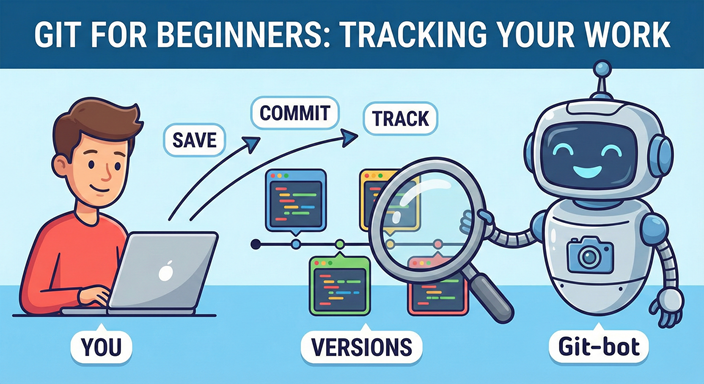
Git is a tool that helps you save your code properly, track every change, and work confidently without losing progress. For beginners, Git can feel confusing because it runs through commands, but the idea is simple that Git keeps a history of your project so you can move forward safely and fix mistakes quickly.
What is Git
Git is a distributed version control system. In simple terms, it means Git keeps a full copy of your projects’ history on your computer, not only on an online server. You can commit changes locally, view history anytime, and later share those changes with others.
Why Git is Used
Git is used because it solves common coding problems that happen when projects grow
Tracks changes clearly: You can see what changed and when it changed.
Prevents loss of work: If something breaks, you can return to a previous stable version.
Improves teamwork: Multiple people can work on the same project without overwriting each other’s work.
Creates a reliable history: You get a clean timeline of progress instead of scattered “final” folders.
Git Basics and Core Terminologies
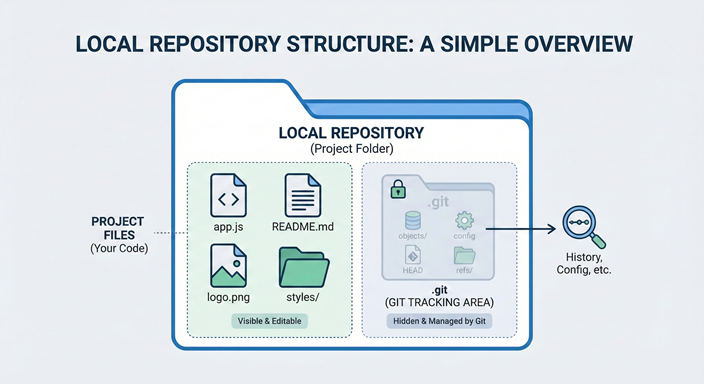
Repository (Repo) : A repository is your project under Git tracking. It contains your files plus Git’s history of changes.
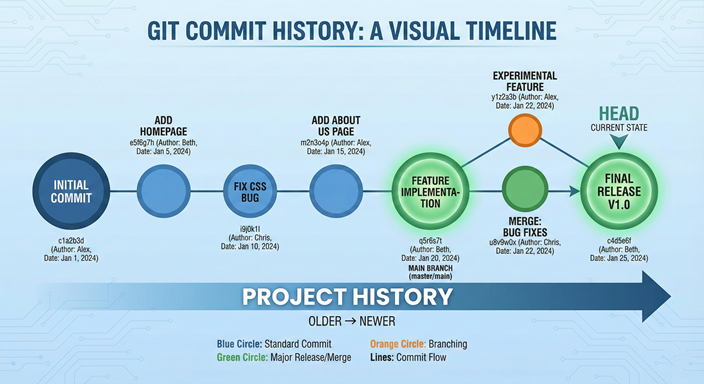
Commit: A commit is a saved checkpoint of your code at a specific moment. Each commit includes a message explaining what changed.
Branch: A branch is a separate line of work. It allows you to experiment or build a feature without disturbing the main version of the project.
HEAD: HEAD is Git’s pointer that tells you where you currently are usually the latest commit of the current branch.
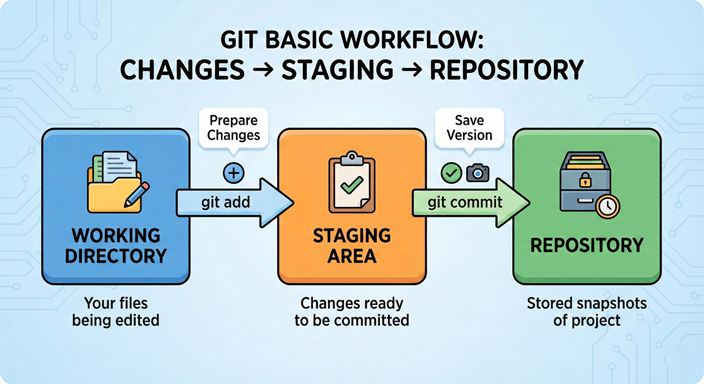
Working Directory, Staging Area, Repository : Git works in three areas: 1. Working Directory: where you edit files 2. Staging Area: where you select changes to be saved 3. Repository: where commits are stored as history
Common Git Commands
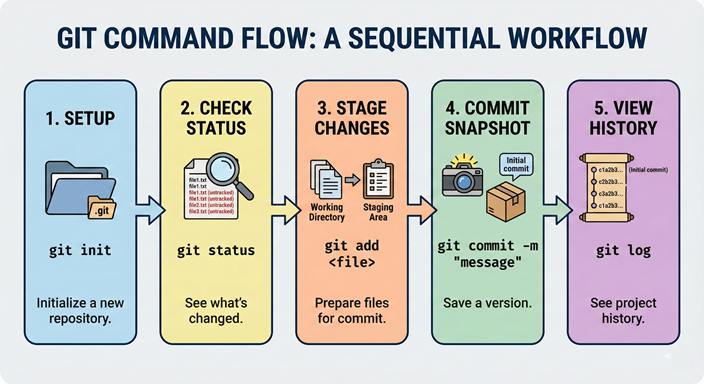
A) Start tracking a project: git init → Use this inside your project folder to start Git tracking:
git init: This creates the repository setup in your folder.
B) Check what changed: git status → To see what’s modified, staged, or untracked:
git status
C) Select changes to save: git add → To stage all changes:
git add: Staging means: “These are the exact changes I want in my next commit.”
D) Save a checkpoint: git commit → To create a commit:
git commit -m "your message": (A good message is specific, like: "add login page UI" OR "fix header alignment")
E) View your saved history: git log → To see commit history:
git log
Local Repository Structure (simple view)
When Git is initialized, it maintains internal tracking data (history, commits, pointers). You do not need to manage these files manually, but understanding that Git stores project history locally makes Git feel less mysterious.
Conclusion
Git is a beginner’s best tool for building coding discipline. Once you understand the core terms (repository, commit, branch, HEAD) and practice the essential commands (git init, git status, git add, git commit, git log), you will be able to manage projects confidently and build a clean history of your work from day one.


